



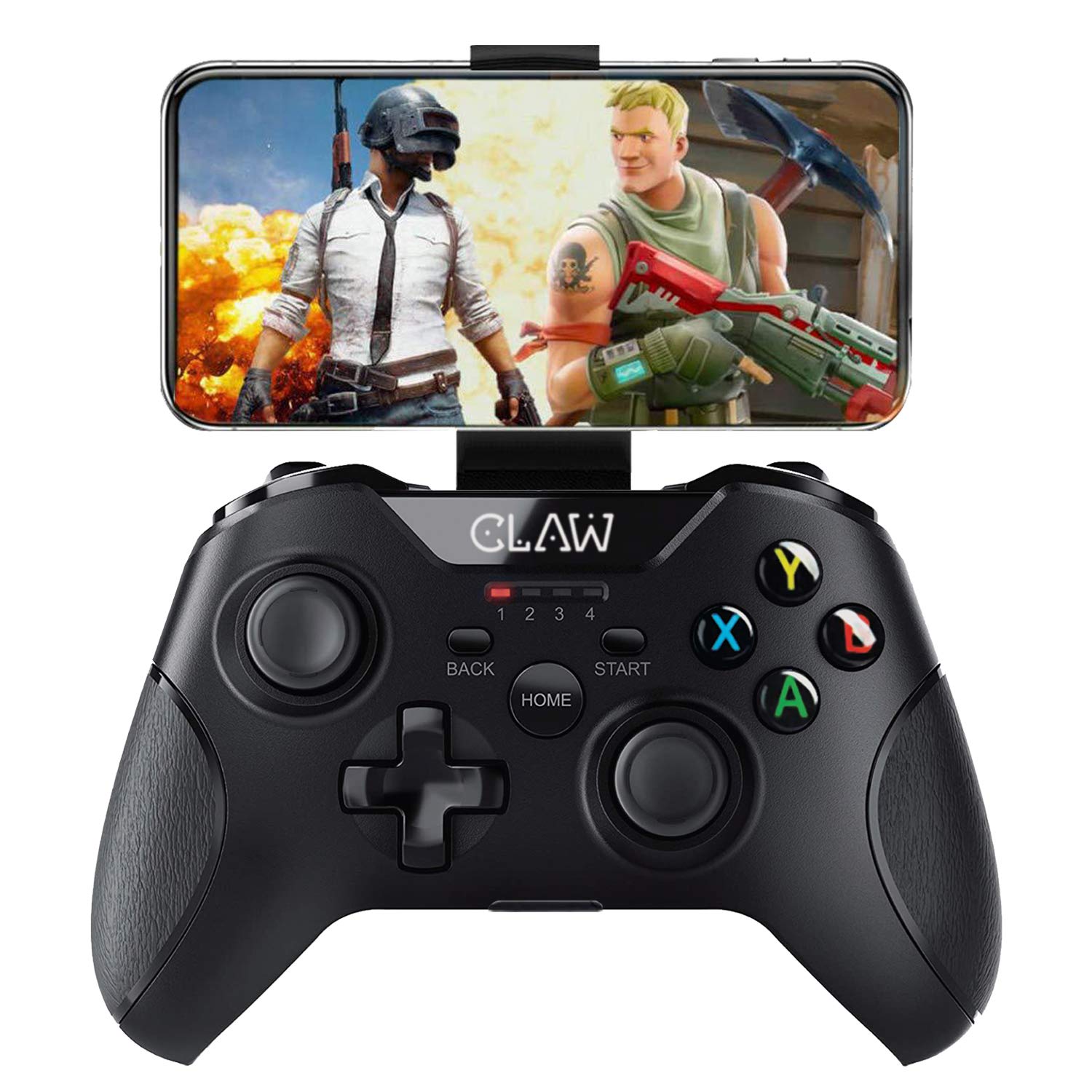
CLAW Shoot Bluetooth Mobile Gamepad (Upgraded 2022 version)
- Regular price
-
Rs. 1,700.00 - Regular price
-
Rs. 2,490.00 - Sale price
-
Rs. 1,700.00
Inclusive of all taxes
Shipping calculated at checkout.
-
Hurry, only 5 items left in stock!
DELIVERY INFORMATION
Delivery Time : 3 - 7 Days (Depending on the location)
Description
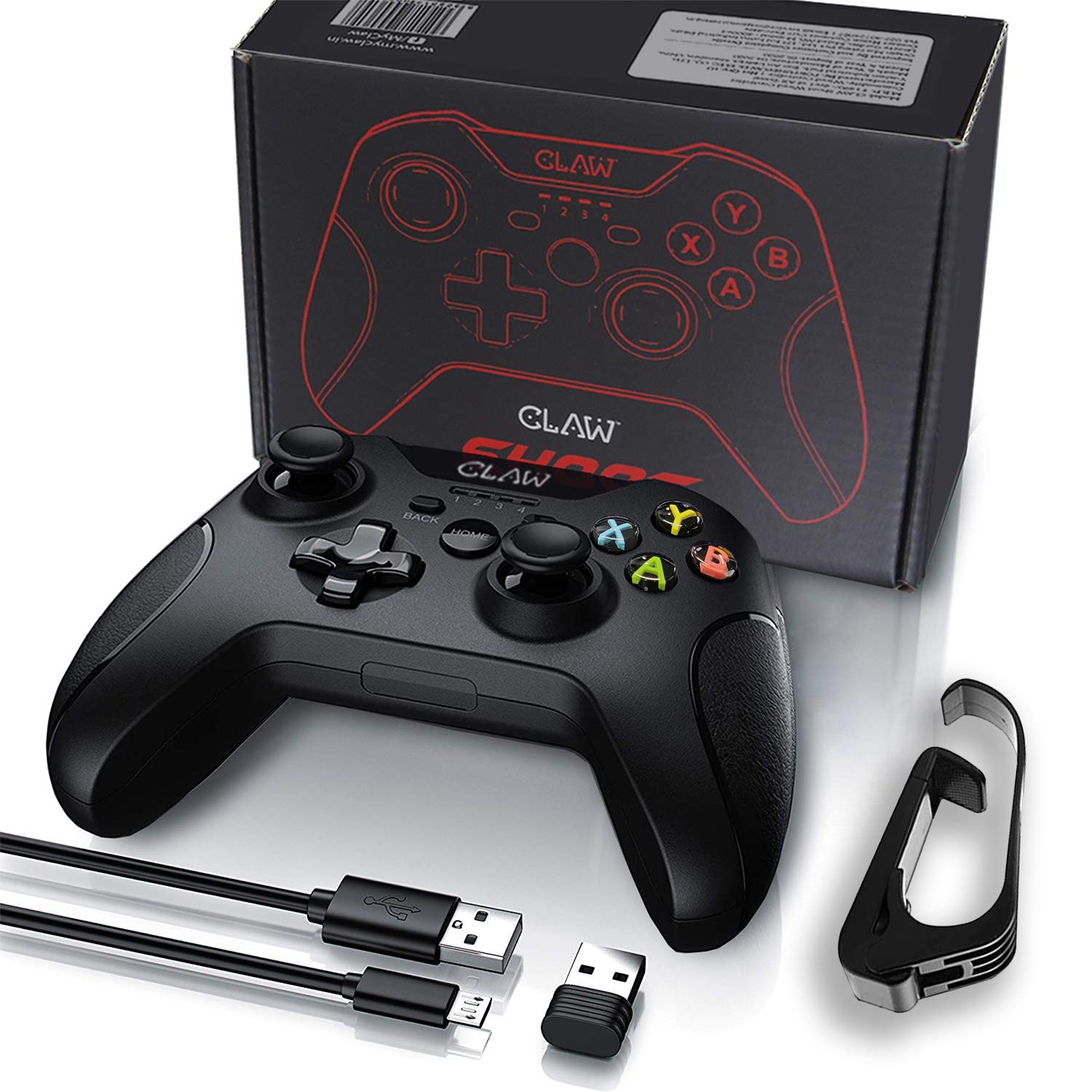
- 🎮 [Dual Wireless Technology Supports Android & Windows] The CLAW Shoot Controller easily pairs via Bluetooth with Android Mobiles, Tablets, Smart TVs and TV box, whereas the PC mode uses the included 2.4Ghz Wireless USB dongle.
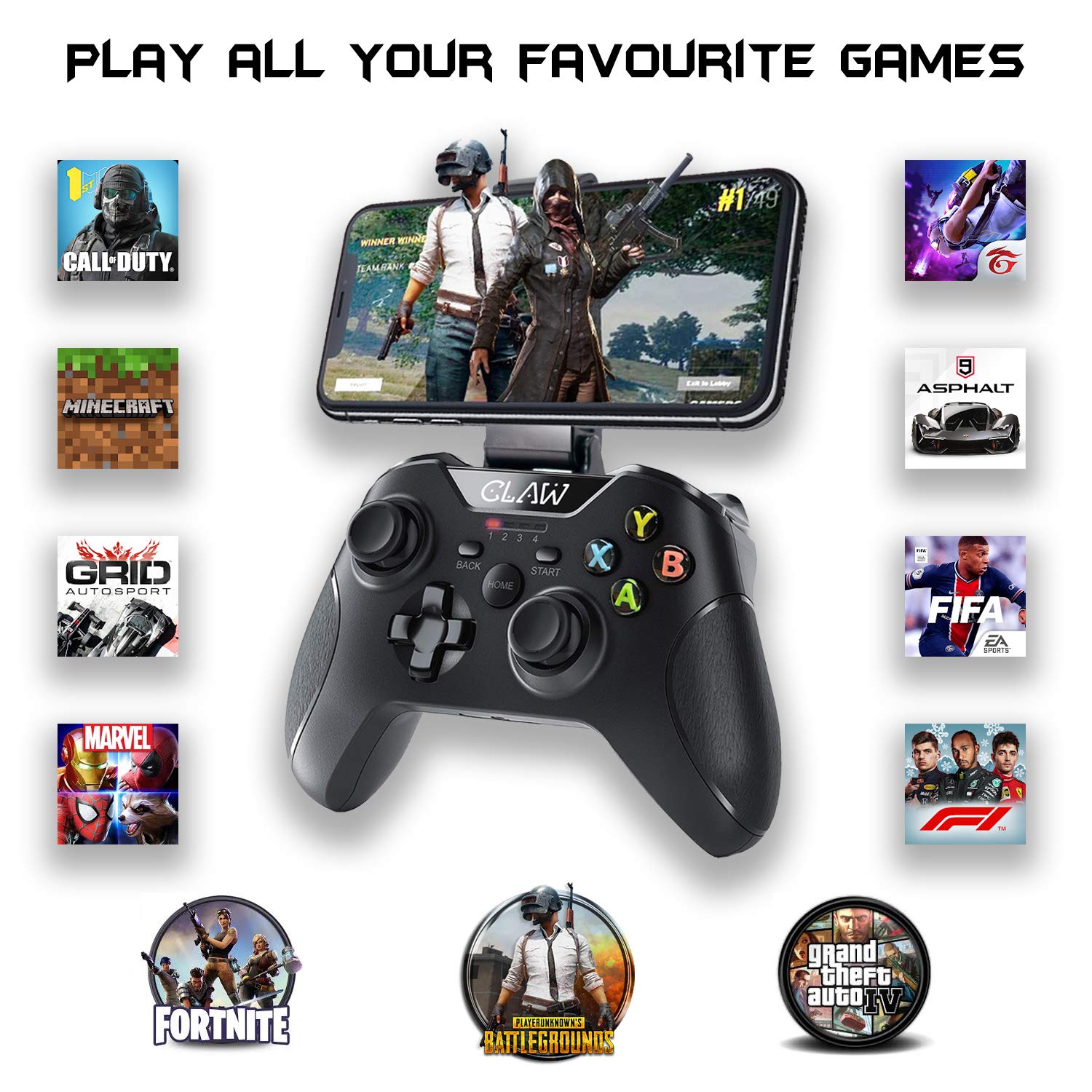
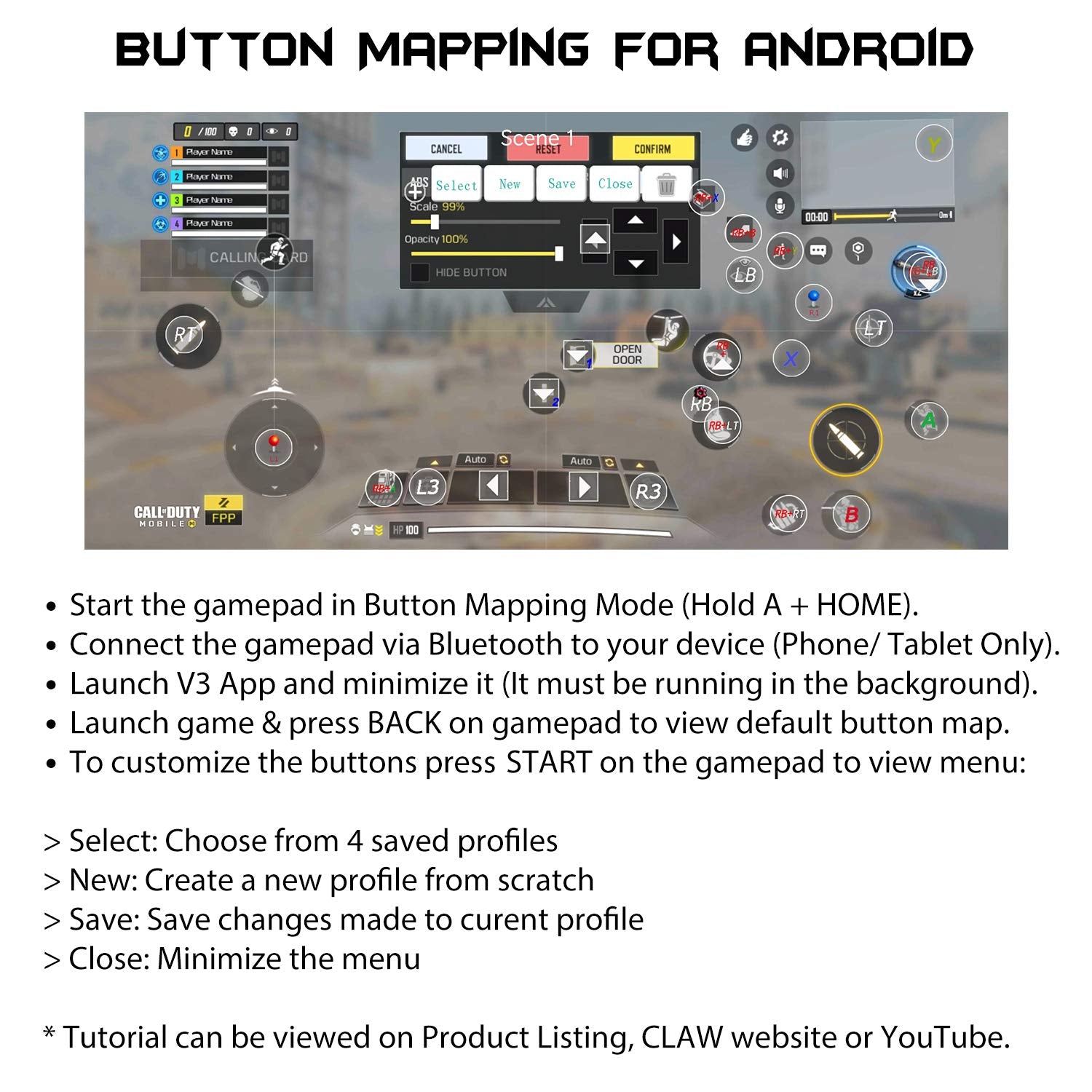
- 🎮 [Button Mapping for Android Touchscreen Devices] Now you can play your favourite games even if they are not natively supported. Install the ‘ShootingPlus V3’ App from the Play Store and use pre-configured buttons or configure your own buttons for games like PUBG, Call of Duty, Free Fire, Fornite and many more.
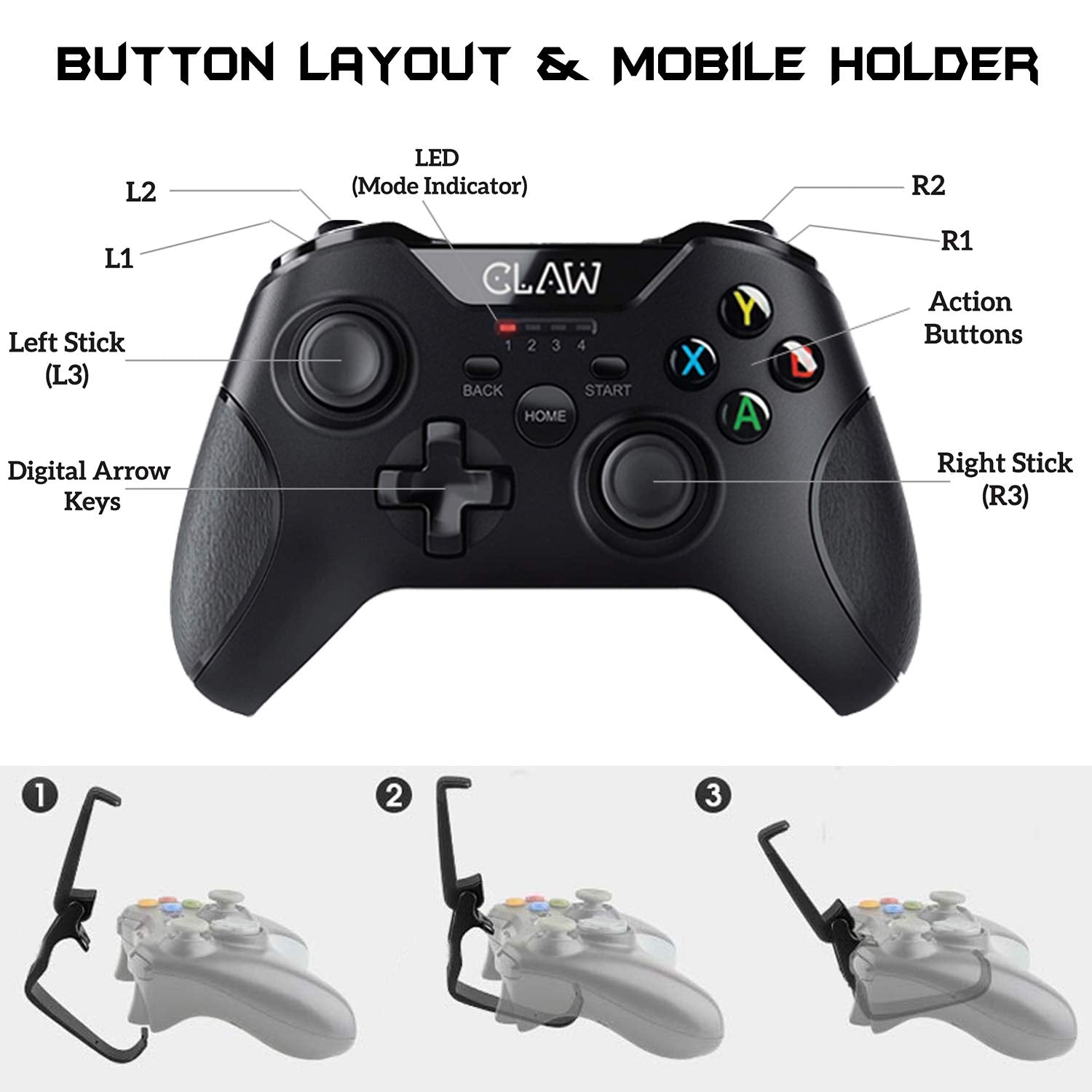
- 🎮 [Built to Game] Included in the box is a detachable smartphone bracket capable of holding mobiles between 4 to 7 inches. Get up to 8 hours of gaming with the in built-in 400mAh rechargeable battery and a wireless range of up to 10 meters (33 feet).
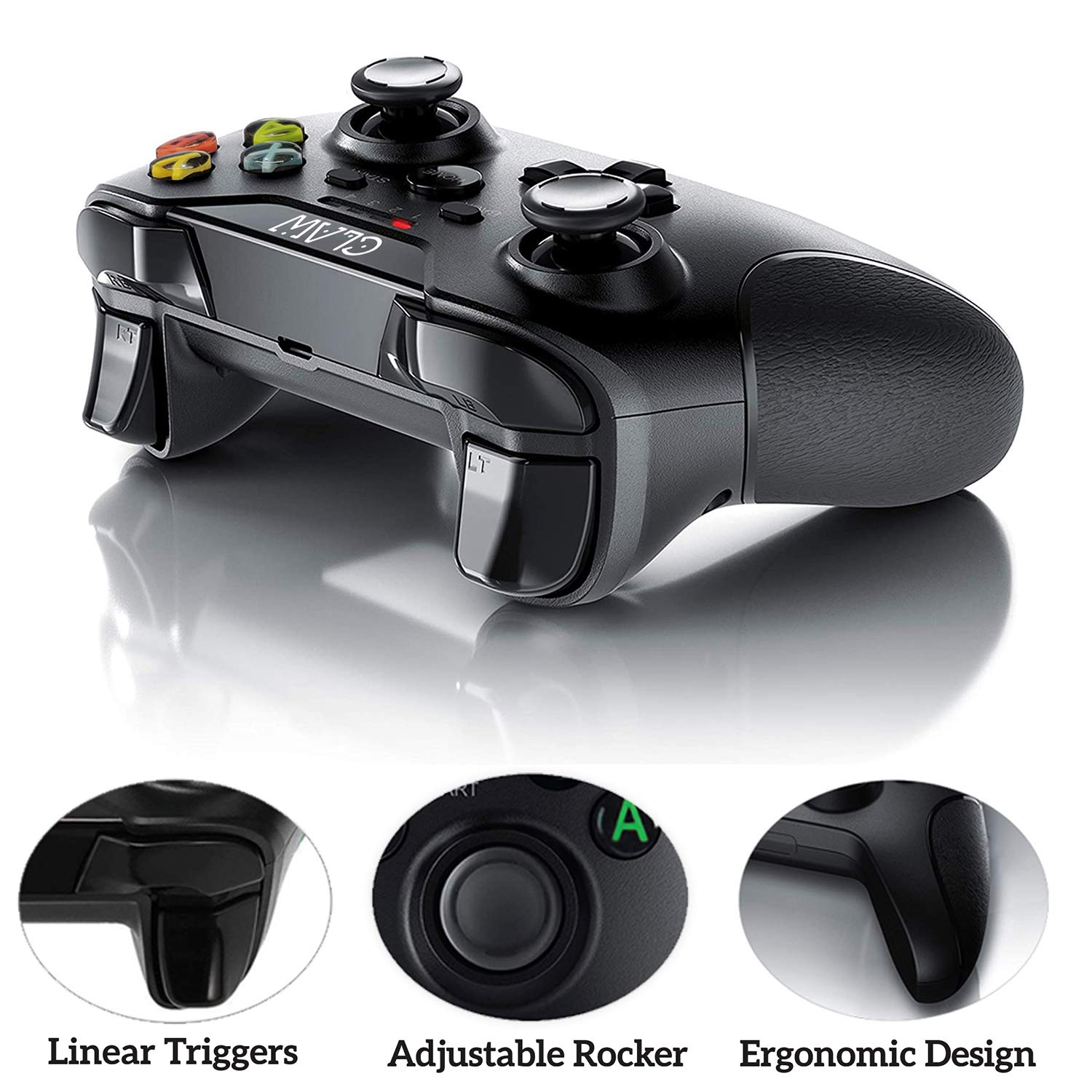
- 🎮 [Well-built Layout & Buttons] The streamlined layout features rubberized textured grips along with 2 Analog sticks, 8 Way Directional D-Pad, 4 Action Buttons, 2 Triggers, 2 Shoulder Buttons and Dual Vibration Motors for PC games only.
- 🎮 [Broad PC game support] Thanks to the dual input support (X-Input & D-Input), you can play old and new games by simply changing modes. Supports top games such as FIFA, GTA, PUBG PC, Call of Duty PC, NFS and many more. ⚠ Please note that devices with Mediatek processors are not supported in 'Button Mapping Mode' & will only work in 'Standard mode' hence please check your device processor before purchasing.
What's In the Box?
Imported & Marketed By
Claw Lifestyle Private Limited.
226, Raj Ratna Industrial Estate, Liberty Garden, Malad (West), Mumbai 400064, Maharashtra, India.
Frequently Asked Questions (FAQs)
How to connect the Android Mobiles with the Bluetooth and Wireless gamepad controllers?
What to do if the controller is not responding or working abnormally?
How the dual motor vibration works?
How charging indicators work for Bluetooth and Wireless gamepad controllers?
How to perform Button Mapping?